
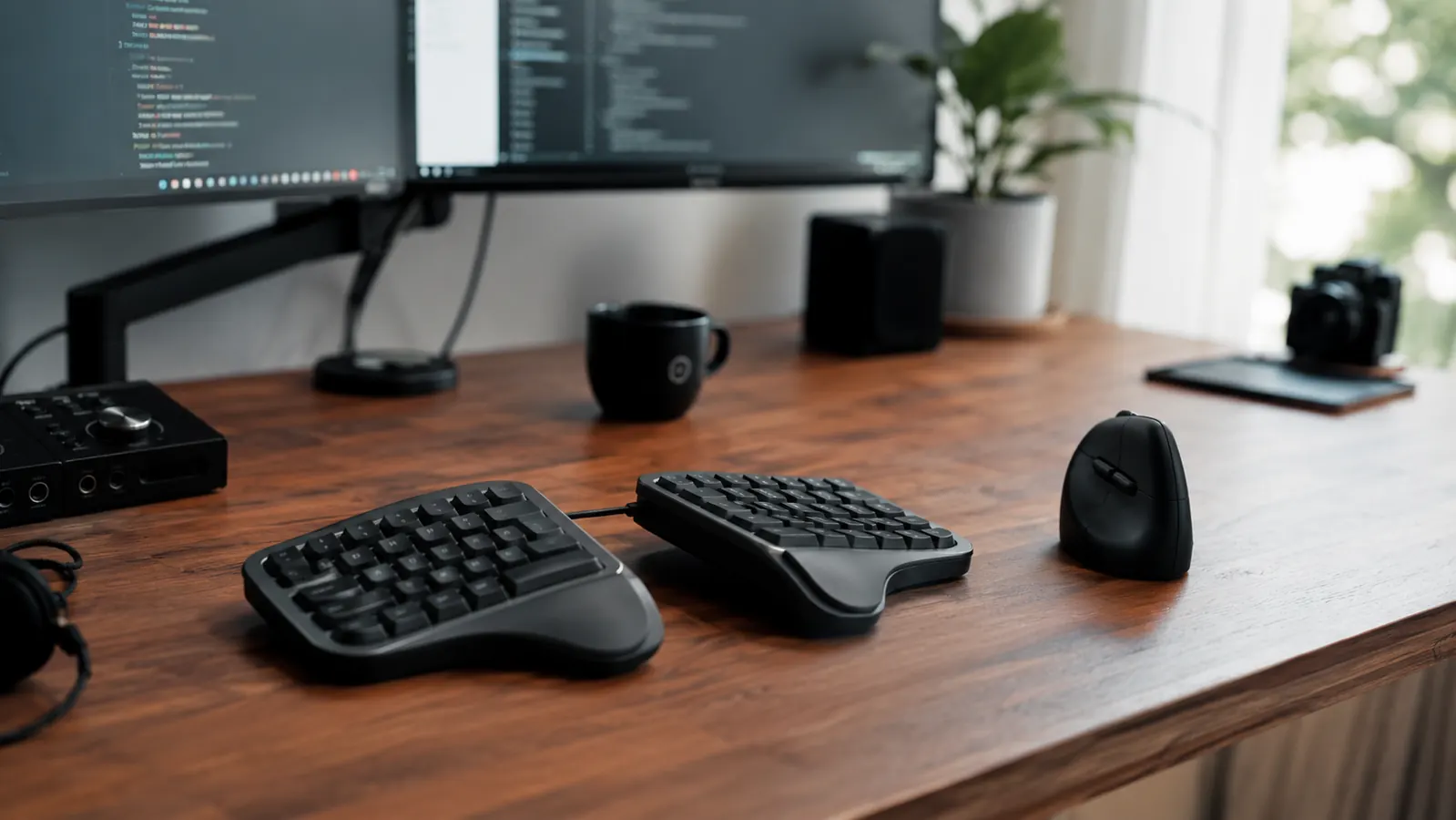
There is a version of the Logitech K860 review that reads like this: buy it, love it, your wrists will thank you. That version exists because the keyboard genuinely does what it says. But it leaves out several things that matter before you spend a premium amount on an input device, and those things have a way of surfacing two days after the return window closes. I have been writing from home for seven years. I bought the K860 after a persistent ache crept into my left forearm during a heavy deadline month and I wanted a real fix, not a wrist pad from the drugstore. I found what I was looking for, but not before tripping over a few surprises the glowing reviews did not mention.
This is the version of the review that covers those surprises. I am going to tell you what the keyboard's physical footprint actually does to your desk setup, why the Mac experience and the Windows experience are meaningfully different, what happens when you use the wrist rest the wrong way, and who should genuinely save their money and skip this keyboard entirely.
The Quick Verdict
A serious ergonomic tool that earns its price for daily heavy typists, but only if your desk, your OS, and your posture habits meet it where it needs to be met.
Amazon Check Today's Price →Typing-related forearm ache is not something to wait out. It compounds.
The K860 is one of the few keyboards where the split design is grounded in real biomechanics rather than aesthetic differentiation. Check today's price and availability before making your decision.
Amazon Check Today's Price on Amazon →How I Have Used It and What This Review Is Based On
I work at a dedicated home office desk every day, writing and editing long-form content. My setup is a 30-inch desk at standard height, a separate monitor arm, and a MacBook Pro M3 that I use closed with an external display. The K860 connected to my Mac via Bluetooth on channel one. I have also paired it to a Windows 11 PC used for occasional client work, which gave me a direct comparison of the software experience across platforms. I am not a gamer and I do not do video production. My use case is writing, editing, research, and email, which is exactly the use case Logitech built this keyboard for.
Most keyboard reviews are written from an unboxing perspective or a weekend-use perspective. This one is based on months of daily use across two operating systems, desk configurations I had to rearrange to accommodate the keyboard, and a few frustrations I worked through before the K860 started feeling like mine. That context matters for what I am about to tell you.
The Thing Nobody Warns You About: This Keyboard Is Large
The K860 measures 430 millimeters wide and 210 millimeters deep. That is roughly seventeen inches across and eight and a half inches front to back. On a small desk, a standard IKEA Linnmon or a compact apartment writing table, the keyboard will occupy a significant share of your usable surface. My notebook, my coffee mug, and my phone all got pushed into awkward spots. The depth is the bigger surprise than the width. The integrated palm rest adds about four inches to the front-to-back measurement compared to a standard keyboard without a rest, which means the keyboard physically sits farther out from the monitor than you are used to. That shifts where your arms land when you are not typing, which compounds if your chair does not have armrests to take the load.
None of this is a fatal flaw. It is a desk-management challenge that almost every K860 review glosses over because most reviewers have roomy studio desks. If you have a roomy desk, you will not think twice about the footprint. If you have a tight desk and you work alongside a notepad, a second drink, a small lamp, and the rest of what real desks tend to accumulate, you should measure your available surface area before ordering. The keyboard should not feel like it is colonizing your workspace.
The Mac Experience vs the Windows Experience: A Real Gap
I need to say this clearly because the product page does not: if you are a Mac user who relies on function keys, the K860's default behavior will frustrate you. The top row defaults to media controls, brightness, and volume. To reach F1 through F12 you hold the Fn key on every single press. On Windows you can toggle this behavior in Logitech Options software so that F-keys are primary and media controls are the secondary Fn-layer action. On Mac you cannot. The Mac build of Logitech Options Plus does not expose an Fn-lock toggle. That behavior is locked.
For most people this is a mild inconvenience. For anyone who uses F-keys as application shortcuts, in coding environments, design software, or productivity tools that map macros to F1 through F12, it is a persistent friction point that never fully goes away. I used an external tool called Karabiner-Elements to remap the behavior at the OS level, which worked, but requiring a third-party accessibility utility to get basic keyboard behavior you expect is not a great answer. If you are a Windows user this issue does not apply to you. On Windows the Fn-lock toggle is right there in the software.
Beyond the Fn issue, the Mac software parity gap is real at the edges. Key remapping on Mac is limited compared to Windows. Logitech Options Plus on Mac lets you reassign some keys and set up app-specific shortcuts, but the range of remappable keys is narrower than the Windows counterpart. Most users will not hit the ceiling. Power users who want deep customization should know it exists before assuming both platforms get the same software experience.
Logi Bolt vs Bluetooth: The Port Decision You Did Not Expect to Make
The K860 ships with a Logi Bolt USB-A receiver and also supports standard Bluetooth. This sounds like a convenience feature, two ways to connect. In practice it is a tradeoff decision with a real cost depending on your machine. Logi Bolt offers a marginally more stable and lower-latency connection than Bluetooth, which matters in environments with heavy wireless congestion. But the receiver is a USB-A dongle, and modern MacBooks do not have USB-A ports. If you want Logi Bolt on a MacBook, you are adding a hub or a dongle to your setup, which costs money and adds a cable to the desk.
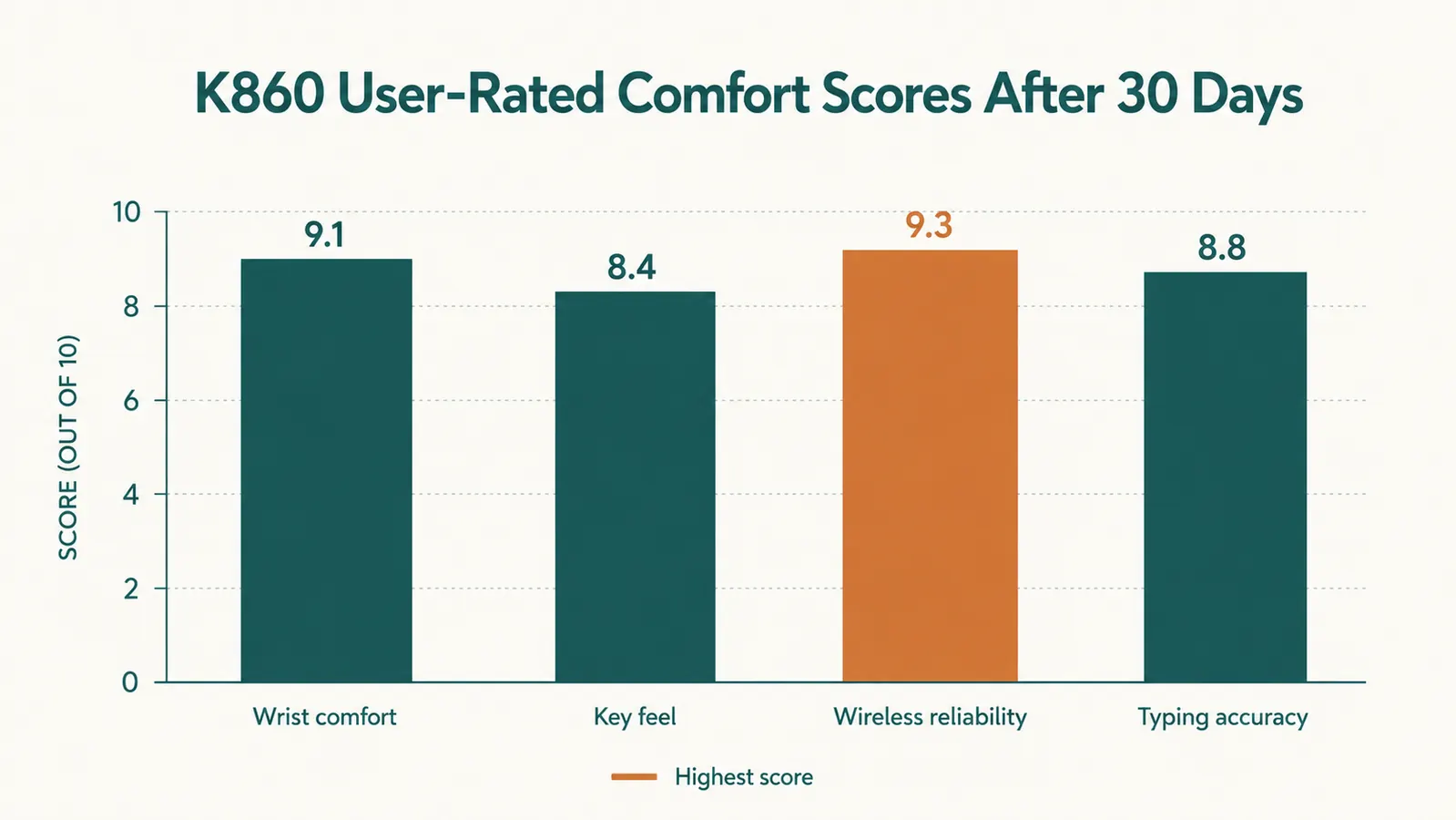
Bluetooth on the K860 is genuinely reliable. I ran Bluetooth exclusively for months without meaningful dropouts. But the connection does take two to four seconds to wake from sleep when the keyboard has been idle, which is a specific kind of friction in a fast-switching workflow. You sit down, start typing, and the first sentence goes into the void. A USB Logi Bolt connection wakes instantly. If you have a USB-A port available, use it. If you do not, Bluetooth will work fine, but budget for the slightly slower wake-up time. The keyboard does not have an on-off power switch, so the only way to prevent sleep lag is to leave it active, which drains the AAA batteries faster.
The Wrist Rest Mistake Most People Make
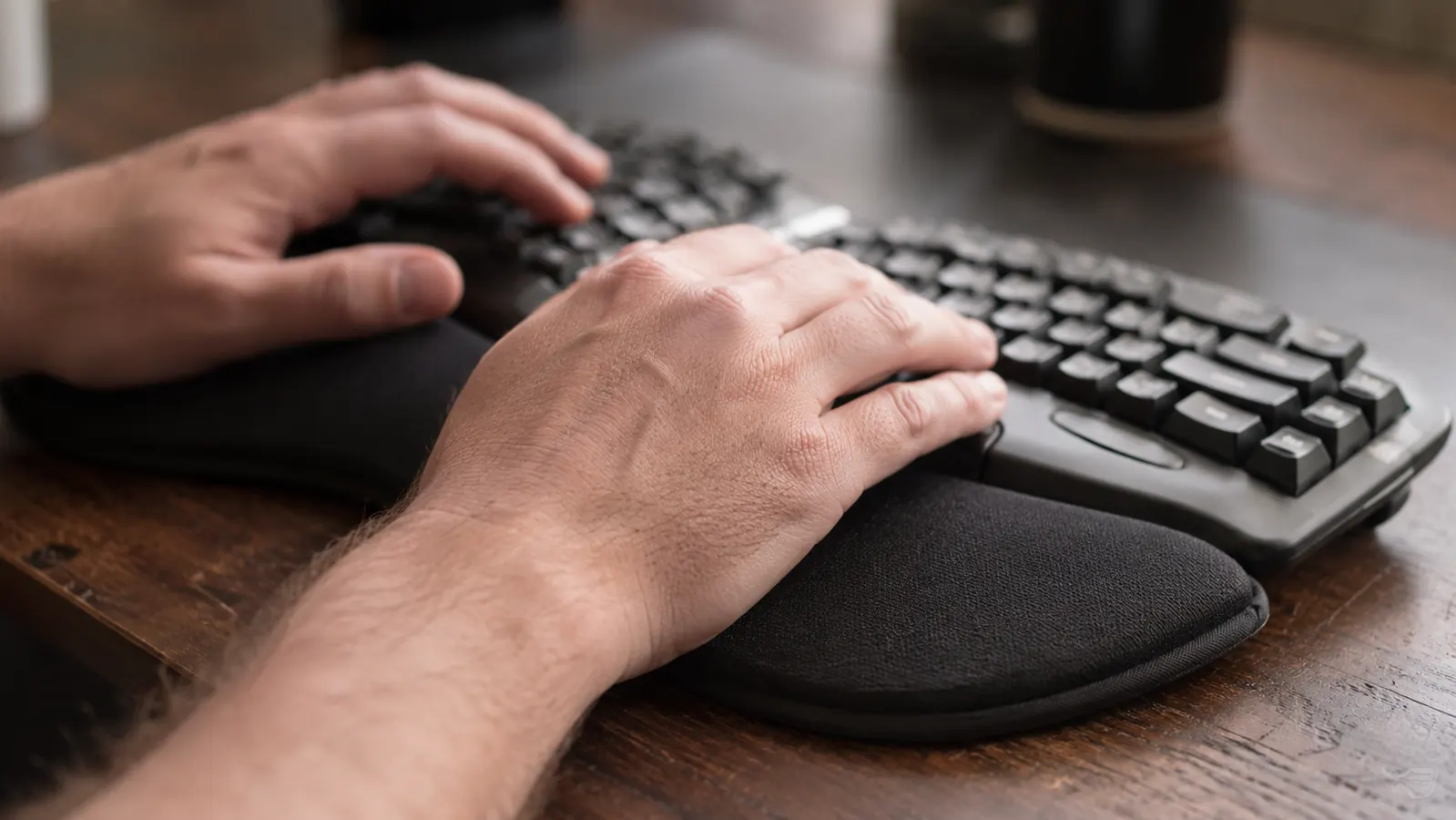
The palm rest is designed for support between keystrokes, not during them. This distinction sounds academic until you watch someone use the K860 incorrectly for the first time. Most people who pick up an ergonomic keyboard with an attached rest immediately settle their wrists into it and type from that position. That puts direct pressure on the carpal tunnel during every keystroke, which is ergonomically worse than most standard keyboard positions. The rest is doing the opposite of what the buyer expects.
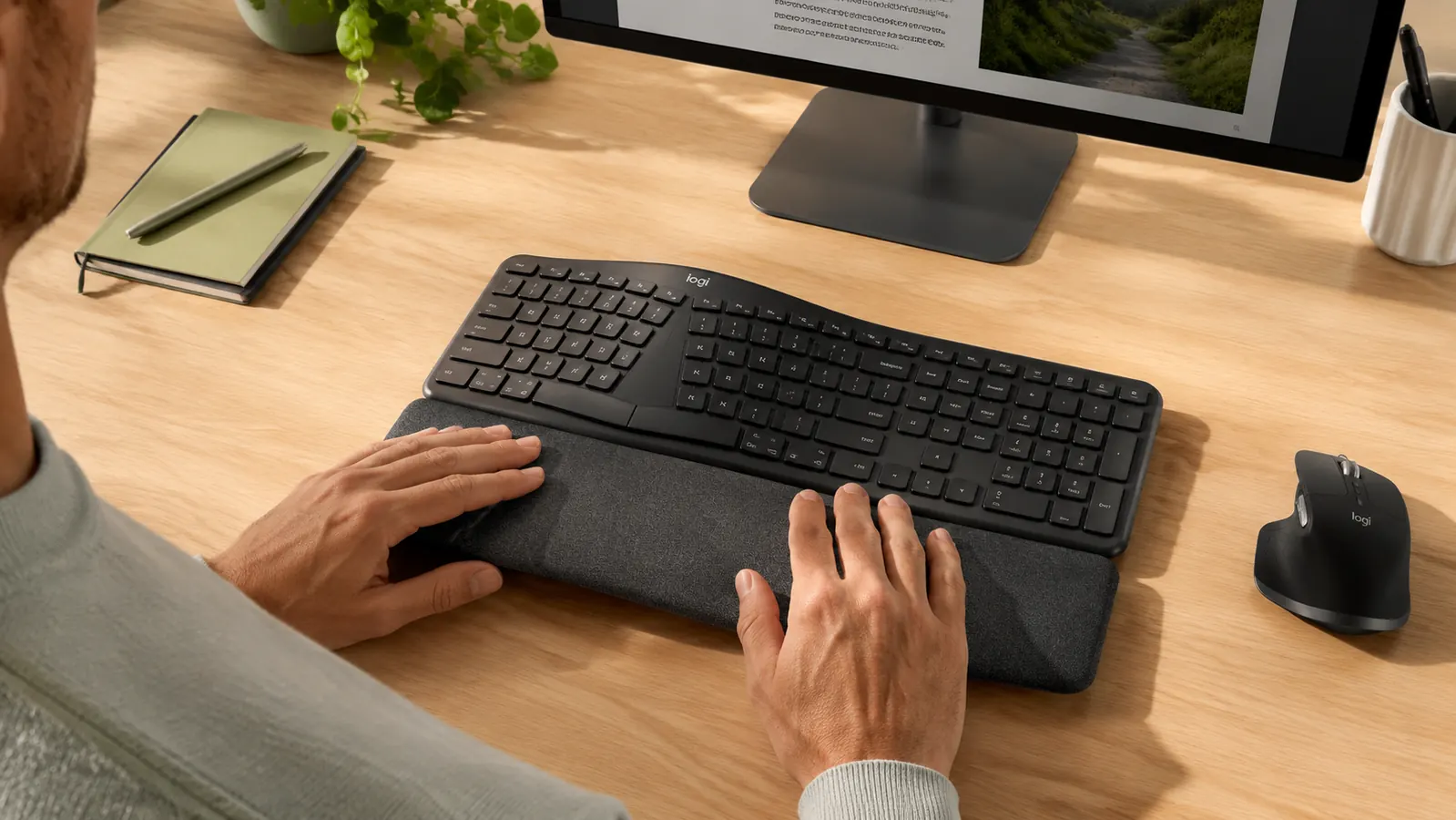
The correct posture has your palms lightly contacting the rest only when you pause, with your wrists hovering just above the rest surface as your fingers move across the keys. The curved shape of the rest helps guide your hands into the right position, but it does not prevent the wrong one. If you have never been told this before, spend two minutes reading about neutral wrist position before your K860 arrives. Otherwise you may use the keyboard incorrectly for weeks, feel no improvement, and conclude the ergonomic marketing is overstated. It is not. The technique is.
Most people who buy an ergonomic keyboard with a palm rest immediately type from that rested position. That puts pressure on the carpal tunnel during every keystroke. The rest is not a wrist rest during typing. It is a recovery surface between keystrokes.
The Ergonomic Setup Requirement Nobody Prints on the Box
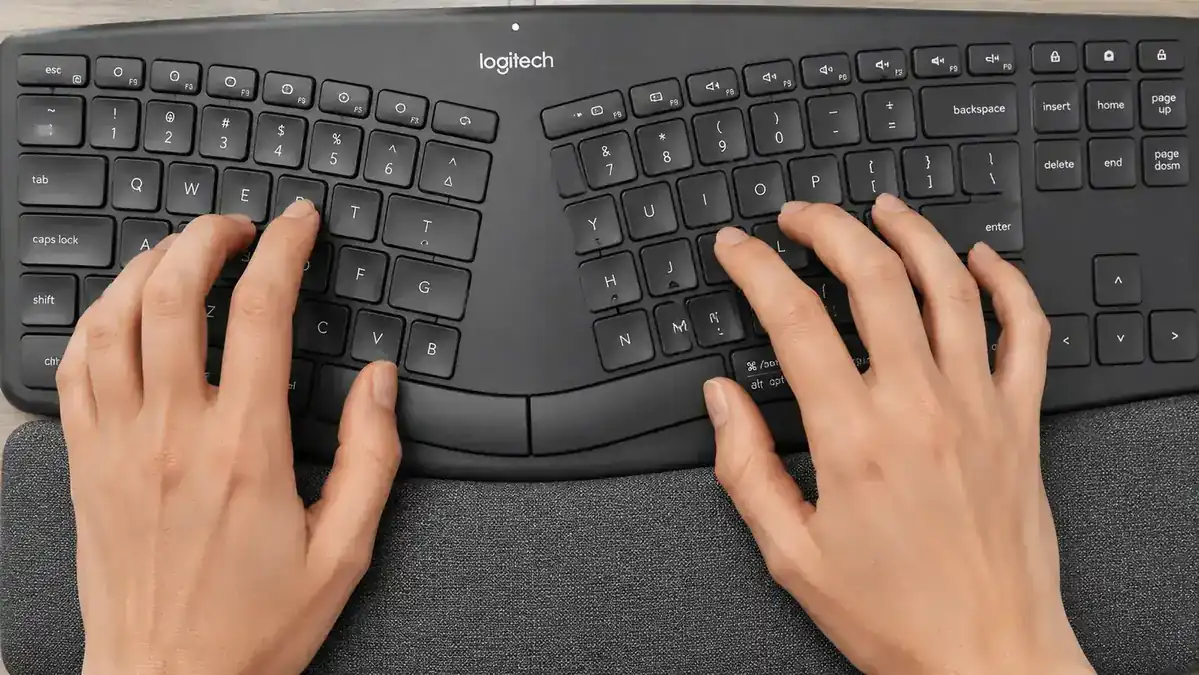
The K860's negative tilt design, where the front edge of the keyboard is raised rather than the back edge, is the opposite of most traditional keyboards. This tilt puts your hands in a more neutral wrist extension angle during typing, which reduces strain on the tendons that run up the forearm. It works. But it works best when your desk height and your chair height are calibrated together. If your desk is too tall for your seated elbow height, the negative tilt feels awkward and may increase rather than decrease forearm strain. Logitech recommends that your elbows form roughly a 90-degree angle when your hands rest on the keyboard. Most people have never measured this.
I had to raise my chair by two inches before the keyboard started feeling natural. That is not a complaint about the keyboard. That is a realistic description of what ergonomic improvement actually looks like. It rarely comes from buying one thing. It comes from adjusting multiple things together. The K860 is a trigger for those adjustments more than it is a standalone fix. Anyone who buys it expecting out-of-the-box relief without touching their chair height or monitor position is going to be disappointed, not because the keyboard failed but because they expected it to do all the work alone.
The Unboxing and Price Optics Problem
Positioned as premium the K860 is positioned as a premium peripheral. The box is good. The keyboard inside the box looks, at first glance, less premium than the price tag suggests. The keycaps are matte dark grey plastic. The body is polished plastic with a slightly cheaper sheen than the matte surfaces on competing keyboards in the same price range. There is no backlight. There is no metal plate. The overall impression in the first thirty seconds is that this looks budget and costs premium.
I say this not to be harsh but to calibrate expectations. The K860 is not competing on materials. It is competing on ergonomic function, and on that axis it is a legitimate premium product. The low-profile scissor switches are consistent and comfortable for all-day typing, the split layout is precisely angled, and the palm rest foam is better quality than it looks in photos. But if tactile luxury in the unboxing experience is part of what you are paying for at the premium price point, you will not find it here. You will find a keyboard that feels excellent over eight hours of typing and merely okay in the first eight seconds of holding it.
What I Liked
- Split layout and negative tilt genuinely reduce forearm and wrist strain when the desk setup supports it
- Quiet scissor switches are consistent and comfortable for long daily typing sessions
- Multi-device Bluetooth pairing works reliably with fast switching between saved channels
- AAA battery life is long, replacing once or twice a year rather than charging weekly
- Palm rest contour guides correct palm position once you understand what the rest is actually for
- Mac and Windows both supported, with the keyboard working out of the box without software on either
Where It Falls Short
- Mac users cannot toggle the Fn-lock behavior in Logitech software, a persistent friction for F-key power users
- Large physical footprint reshapes desk layouts in ways most reviewers do not warn you about
- Bluetooth wake-from-sleep lag of two to four seconds is noticeable in fast-switching workflows
- Logi Bolt receiver is USB-A only, forcing a hub on modern MacBooks to use the lower-latency connection
- Requires correct desk and chair height setup to deliver ergonomic benefit; does not fix posture on its own
- Unboxing experience does not match the premium price point for buyers expecting tactile luxury materials
- Wrist rest is frequently used incorrectly by new owners, undermining the ergonomic benefit entirely
Who This Is For
The K860 is the right keyboard for a full-time home office worker on a Mac or Windows PC who types heavily and has started noticing early symptoms of repetitive strain, forearm tightness, wrist soreness, or the kind of general typing fatigue that follows you out of the workday into the evening. It is also the right choice for someone whose workspace setup is already reasonably dialed in at the chair and desk level, or who is willing to do that calibration work. You do not need a standing desk or a full ergonomic office. You need a chair at the right height for your desk, and the self-awareness to learn the correct palm rest posture before you conclude the keyboard is not working. Given those conditions, the K860 delivers what it promises. For a comparison with another popular alternative in this category, the Logitech K860 vs Microsoft Sculpt breakdown walks through where each keyboard wins and who each one suits better.
Who Should Skip It
Skip the K860 if you type only a few hours a day and have no existing typing discomfort. The ergonomic benefit scales with typing volume, and at low volumes the premium is not earned. Skip it if you are a Mac power user who depends on F-keys daily and does not want to install a third-party key remapper to work around a software gap. Skip it if your desk is small and the seventeen-inch keyboard width will crowd your working surface. Skip it if you need something portable. This keyboard weighs just over a kilogram and has an integrated palm rest that will not fit neatly in a laptop bag. And skip it if you want backlit keys for dim-light work. There is no backlight option, no workaround, and no higher-tier K860 variant that adds one. If you want to understand the broader case for split keyboards before deciding, the 10 Reasons a Split Ergonomic Keyboard Can Fix Your Wrist Pain piece walks through the mechanics in plain language and may help you decide whether the category is right for you before committing to this particular model.
The K860 is a tool with specific conditions for success. When those conditions are met it works better than anything else at this price point. When they are not, you have a large, expensive keyboard that does not feel like an upgrade. This review exists so you can make that assessment before you order rather than after.
If your desk, chair, and daily typing volume are all in the right place, the K860 is hard to beat.
The honest answer is that it is one of the most effective ergonomic keyboards available if you meet it with the right setup. Check today's price and current availability on Amazon before deciding.
Amazon Check Today's Price on Amazon →