
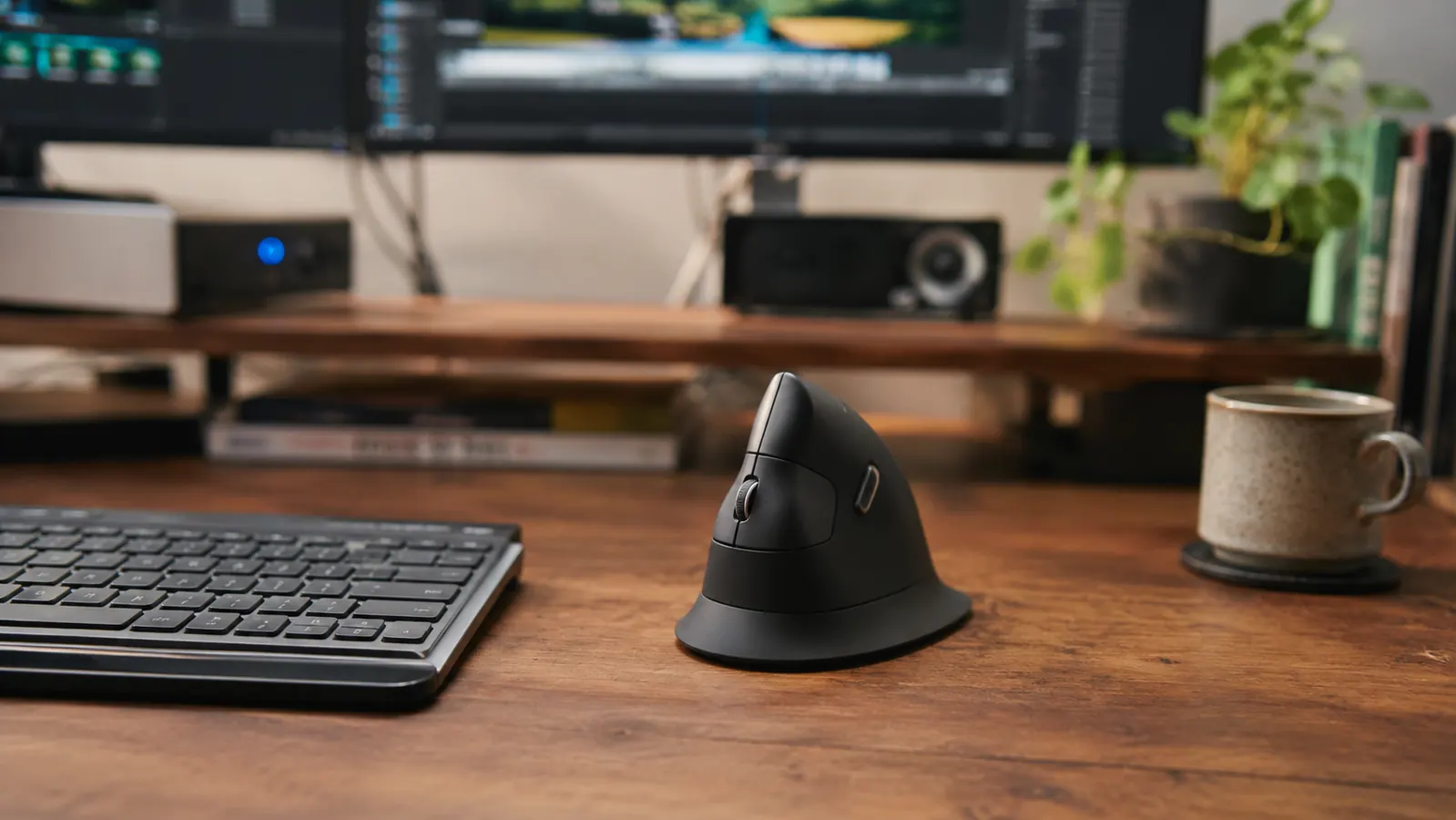
Most people who buy the Logitech MX Vertical, ASIN B07FNJB8TT, do so because their wrist or forearm has been bothering them and they want the problem to stop. That is a reasonable thing to want. What the product page does not tell you is that for the first ten to fourteen days, the MX Vertical is going to make things feel worse, not better. Not dramatically worse. But noticeably more effortful, imprecise, and strange. If you are not prepared for that, you will return it inside two weeks and conclude that vertical mice are a marketing gimmick. They are not. But the entry fee is real, and it is awkward.
This is the review for people who want to know what they are actually getting into before they spend the money. The MX Vertical is a genuinely well-built ergonomic tool with a rating of 4.4 stars across nearly 15,000 reviews. But there are specific things about the learning curve, the software, the hand-size fit, and the DPI button placement that almost nobody writes about before purchase. Here they are.
The Quick Verdict
A legitimate ergonomic investment for remote workers with forearm or wrist fatigue, but only if you commit past the uncomfortable first two weeks. Not for left-handers, precision-design workers, or people who need quick multi-device switching.
Amazon Check Today's Price →If forearm tension is already affecting your afternoon productivity, the fix is posture mechanics, not a wrist rest.
The MX Vertical addresses the root cause of pronation-related fatigue. Check today's price on Amazon before deciding.
Amazon Check Today's Price on Amazon →How I Tested It
I used the MX Vertical as my primary mouse for a full workday, every workday, for fourteen weeks. I write for a living, which means six to eight hours of editing, browser navigation, and spreadsheet work most days. My right hand stays on the mouse for the majority of that. I specifically tracked which tasks felt degraded during the adjustment period, when precision returned to baseline, and where the mouse's limitations showed up in real work rather than in controlled testing. I also installed and used Logitech Options throughout, which is where several of the less-discussed quirks live.
I tested on two surfaces: a standard cloth mousepad and a bare light-wood desk surface. Connectivity was primarily via the Logitech Unifying receiver, with Bluetooth tested on a secondary machine. My hand size is medium, about 7.2 inches from wrist crease to middle fingertip. That detail matters more than I expected with this mouse, and I will explain why.
The Real Adjustment Period: Week by Week
Week one is disorienting in a way that is hard to predict from the outside. The primary click button is no longer horizontal, it is vertical. That means the finger movement you have trained over years of mouse use, a slight downward press, is now a sideways press. Your brain knows the click needs to happen. Your finger keeps sending the wrong motion. During week one, I consistently overpressed on the primary button, landing clicks that were harder than intended and occasionally dragging when I meant to single-click. Text selection became unreliable. I spent more cognitive effort on mouse tasks than I had in years.
Week two is where most people return the mouse. The novelty has worn off, you are not yet comfortable, and the old flat mouse is sitting in a drawer looking reasonable by comparison. What is actually happening is that your motor cortex is still in the middle of retraining. The awkwardness is not a sign that the mouse is wrong for you. It is a sign that adaptation is in progress. I kept a note during week two that said: click accuracy improving but still bad on small targets, scroll feels natural, thumb buttons are already second nature. The thumb buttons, which are the back-forward navigation buttons, are the one thing that feels right almost immediately because the motion required is not different from before.
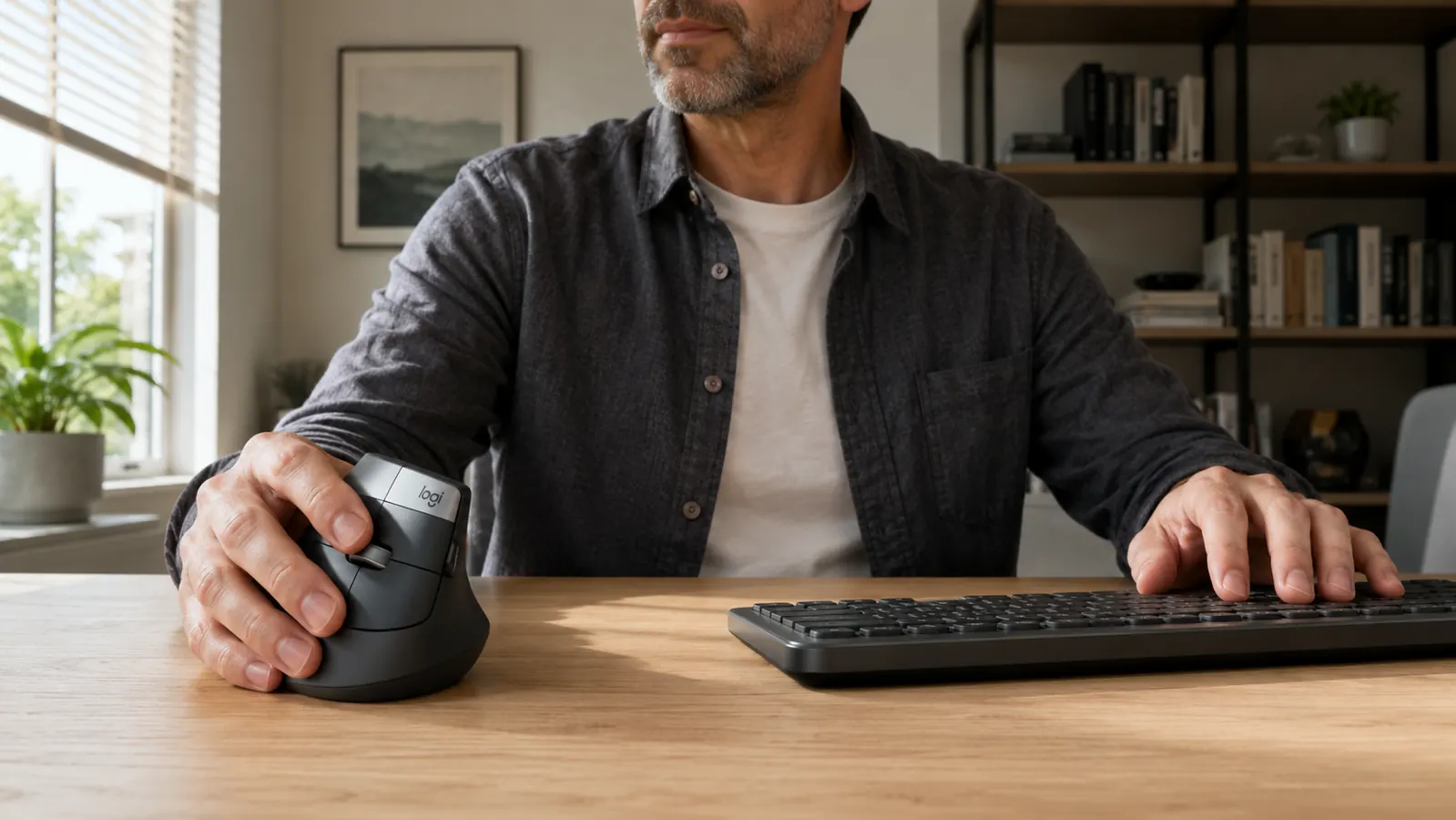
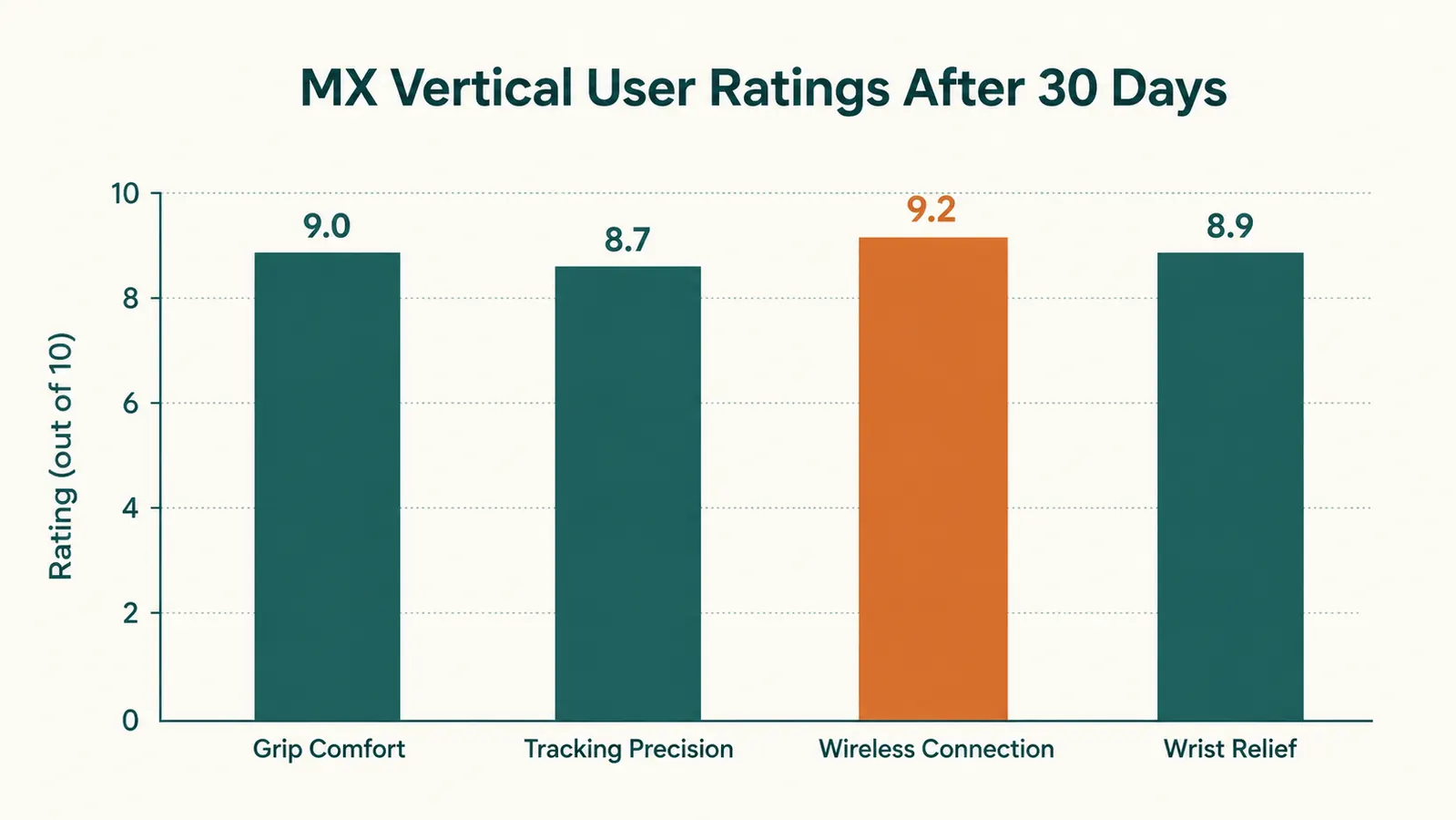
Week three is when it clicks, literally. Precision on small targets returns. Drag-and-drop becomes reliable. The primary button feel, which initially seemed stiff at the unusual angle, stops registering as unusual at all. By day 21, I was operating at roughly the same speed and accuracy as I had with a flat mouse, with the notable difference that my forearm felt better at 4 p.m. Week four was the first week where I did not think about the mouse at all. That is the target state.
The thing Logitech's product page does not communicate is that three weeks is a long time when your work depends on your tools. If you buy this mouse two days before a deadline, you are going to have a bad time. Buy it during a lighter week, plan for a productivity dip, and give yourself explicit permission to struggle through it. The payoff is real. The path to it is not comfortable.
The Hand-Size Issue Nobody Talks About
The MX Vertical is designed for medium to large right hands. The contoured body has a specific shape: the thumb rest sits at a particular depth, the top primary button is at a specific distance from the grip point, and the pinky rest at the bottom of the mouse is sized for a hand that fills out the body. People with small hands, roughly 6.5 inches or under from wrist to fingertip, often report that the grip arch is too wide and the pinky has nowhere to land comfortably. The hand ends up hovering rather than resting, which defeats part of the ergonomic benefit.
On the large-hand end, people with 8-inch-plus hands frequently find that the thumb rest positions their thumb too close to the body of the mouse, causing the thumb to overlap the DPI shift button below the scroll wheel. That DPI button then gets accidentally activated during navigation, which is a real frustration. I have medium-sized hands and this was not my experience, but it showed up often enough in user reports that it is worth checking before you buy. If your hands are on either end of the spectrum, the return window matters.
Logitech Options Software: The Features Are Real but So Are the Traps
Logitech Options is the companion software that lets you remap the MX Vertical's buttons, adjust DPI settings per application, enable or disable features like SmartShift scroll, and set up app-specific button behaviors. Most reviews mention it briefly as a nice bonus. In practice it is where the mouse earns a significant part of its value, and also where several frustrations live.
The useful part: you can set the DPI shift button, the one below the scroll wheel, to do something other than toggle DPI. I remapped it to middle-click, which is far more useful for me as a writer than DPI switching in mid-task. You can also set per-app cursor speeds, which is genuinely helpful if you alternate between a 1080p and a 4K monitor and the cursor behavior feels different between them. These are real productivity features that are not available on cheaper vertical mice.
The frustrations: Logitech Options installs a background process that runs at startup and cannot be fully disabled without uninstalling the software. On older machines with limited RAM, this is a minor but real performance drag. The software also occasionally loses its button customizations after a system update, requiring you to reopen Options and reapply the settings from scratch. It has happened to me twice in fourteen weeks. Nothing is lost permanently, but it is a nuisance on a tool that is supposed to reduce friction. If you use the MX Vertical with Bluetooth and switch it to a second machine, the Options settings are stored locally on each machine rather than in the cloud, so you have to configure it twice.
The DPI Shift Button: A Clever Idea with an Awkward Placement
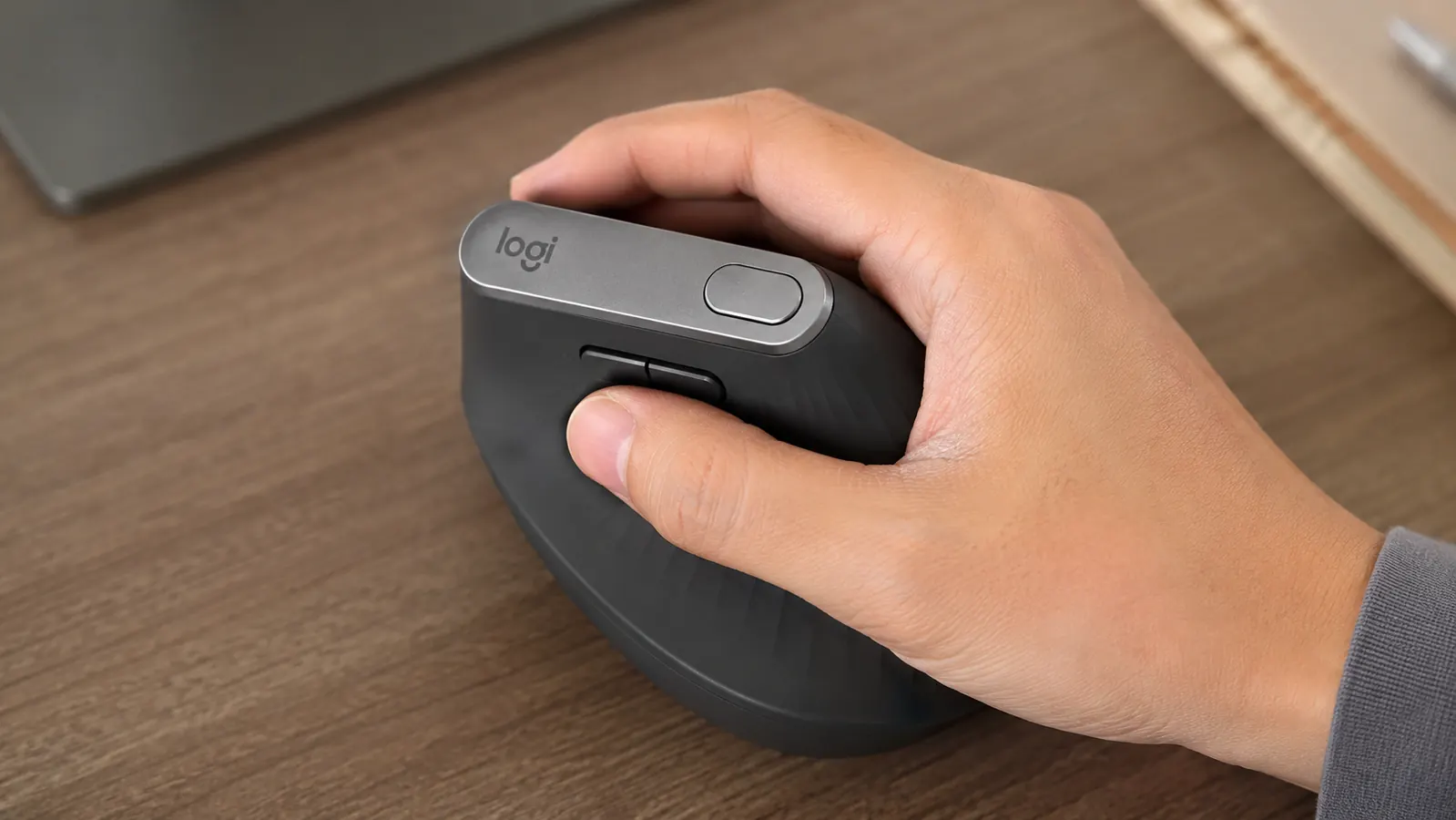
The DPI shift button is positioned directly below the scroll wheel, which puts it under the index finger when the hand is in the natural grip position. The design intent is that you can nudge it with a slight curl of the index finger to switch between DPI levels on the fly. The problem is that the button is not recessed deeply enough to prevent accidental activation during scrolling on some hand sizes. I pressed it unintentionally three times in my first week, each time causing a jarring cursor speed change in the middle of scrolling through a long document. After remapping it in Logitech Options, this ceased to be a problem. But if you use the mouse without the software, or if the software loses your settings after an update, the default placement will catch you off guard.
The first two weeks are the price of admission. The discomfort is not a sign the mouse is wrong for you. It is a sign adaptation is in progress. Most people return it right before the payoff arrives.
Scroll Wheel, Sensor, and the Things That Are Actually Good
Past the adjustment-period caveats, the MX Vertical delivers in places that matter for long-term daily use. The scroll wheel is excellent: smooth, consistent tactile detent per step, and it does not develop the wobble or looseness that lower-cost mice show after a few months of heavy use. The scroll wheel has a horizontal tilt function for side-scrolling in wide spreadsheets, which I use weekly. It requires deliberate lateral pressure and does not activate accidentally during normal vertical scrolling, which is the right balance.
The Darkfield sensor tracks on cloth pads and bare wood without issue. At 400 and 1000 DPI, which cover all the work I do as a writer, the sensor is accurate and consistent. At 4000 DPI, the highest available setting, fast sweeps can produce minor inconsistencies where the pointer overshoots or undershoots. For precision design, photo editing, or video timeline scrubbing, that ceiling matters. For document work, browser navigation, and spreadsheets, you will never brush against it. The sensor is not the reason to skip this mouse for most remote office workers.
Battery life is the unambiguous highlight. Logitech's spec says four months. Real-world heavy daily use runs closer to six to eight weeks before the indicator light signals low battery. Charging via the included USB-C cable takes roughly three hours from near-empty. That frequency is low enough that battery management stops being a mental task. Compare that to wireless mice that need charging weekly and the difference is meaningful.

Who This Is For
The MX Vertical is the right call for right-handed remote workers who have real forearm or wrist fatigue from six-plus hours of daily mousing, who have tried repositioning and wrist rests without meaningful relief, and who can tolerate a two-to-three-week adjustment period during a lighter workload stretch. It is also a fit for people who want software-configurable buttons and are willing to spend a few minutes in Logitech Options to get the layout they want. If your work is primarily document editing, email, spreadsheets, and browser tasks, the sensor is more than adequate at the DPI levels you will actually use. See also the comparison of the MX Vertical against the Anker vertical mouse if budget is a real constraint and you want to weigh the tradeoffs precisely.
Who Should Skip It
Skip the MX Vertical if you are left-handed, there is no left-handed version and the shape is not symmetrical. Skip it if your hands are significantly smaller than medium (under 6.5 inches wrist to fingertip) or if you have large hands and can visit a store to test grip fit before committing. Skip it if your work involves precision pointer control at high DPI, such as photo retouching, video timeline editing, or CAD work, because the 4000 DPI ceiling has real tracking inconsistencies. Skip it if you need seamless one-button switching between two computers, since the MX Vertical requires going into Bluetooth settings to switch paired devices rather than pressing a dedicated button. And skip it if you need the problem to be solved this week: the adjustment period is real and will affect your productivity for the first two to three weeks regardless of how motivated you are. Read through the reasons a vertical mouse reduces wrist and forearm pain if you are still uncertain whether the design change is worth pursuing at all.
What I Liked
- Forearm pronation reduction is real and measurable once the adjustment period is complete
- Exceptional scroll wheel quality that stays consistent after months of heavy daily use
- Battery lasts six to eight weeks of heavy use, making charging an occasional event
- Logitech Options software allows meaningful button remapping that improves daily workflow
- Darkfield sensor works reliably on cloth pads and bare wood at practical DPI levels
- USB-C charging means one less proprietary cable to manage
Where It Falls Short
- Two-to-three week adjustment period with genuine precision degradation at the start
- Hand size fit is critical and not well communicated: small and very large hands struggle
- DPI shift button placement causes accidental activation before remapping in software
- Logitech Options background process runs at startup and occasionally loses custom settings
- No multi-device button switching, only single paired device at a time
- Right-hand only, no left-handed version exists
Know what you are getting into, and the MX Vertical earns its place on your desk.
The learning curve is real but the ergonomic payoff is lasting. Check today's price and availability on Amazon before you decide.
Amazon Check Today's Price on Amazon →