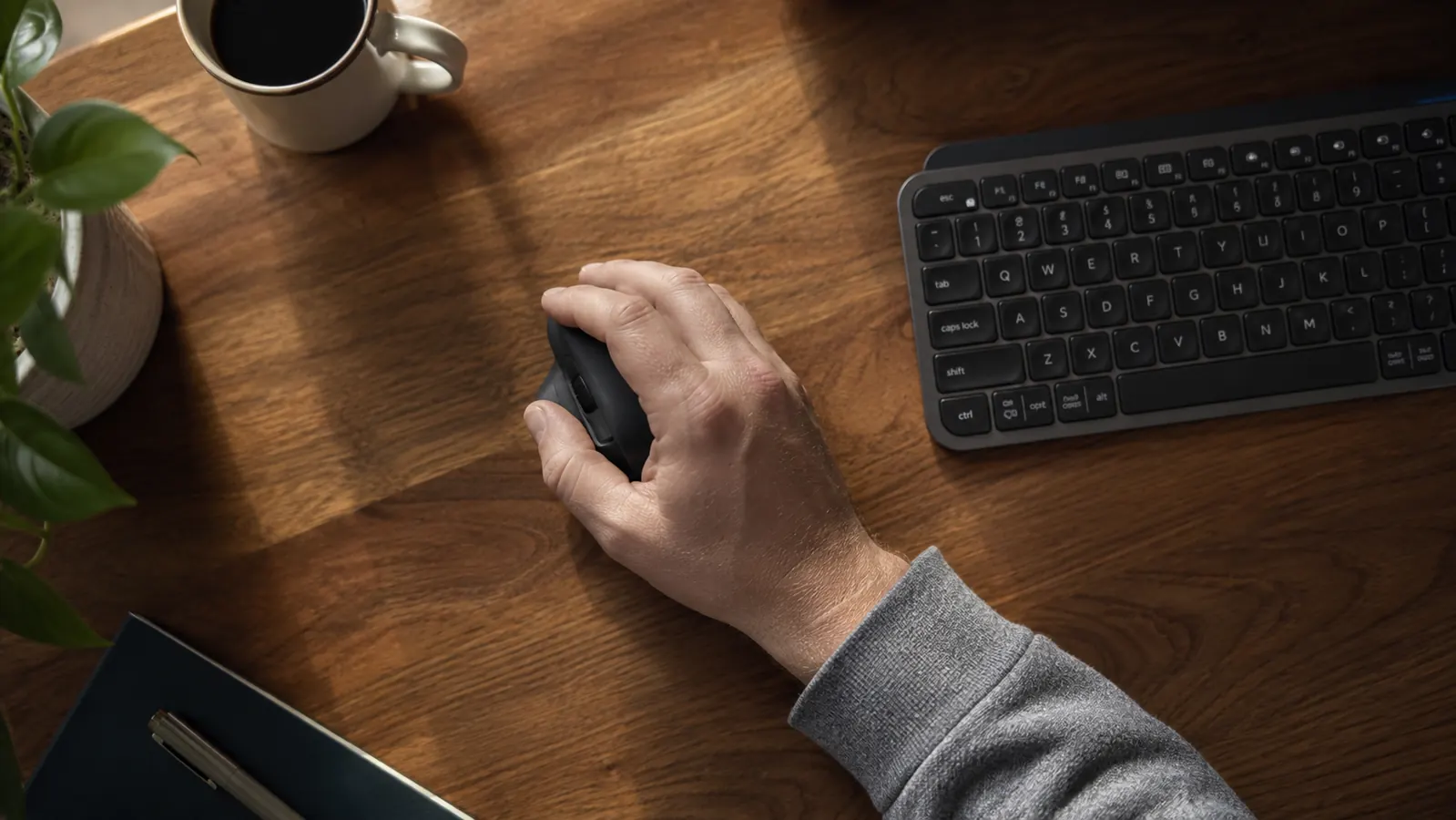
By two in the afternoon, my right hand had a dull throb running from my ring finger up to my elbow. I assumed it was just the cost of writing for a living. I had been clicking and scrolling for eight or nine hours a day for years, and I figured the ache was something I would have to manage with ibuprofen and willpower. I was wrong on both counts. The fatigue was real, but it was fixable, and fixing it required changing more than just my mouse. This guide walks through every lever I pulled, in the order that made the most difference, so you can work through it systematically rather than guessing.
One thing upfront: if you have been clicking through a full workday with a standard flat mouse for more than a year, expect a week or two of transition when you change your setup. The muscles and tendons that have been quietly overloaded need time to unlearn the compensation patterns they built. Sustainable relief takes a few days to settle in. That is normal, and it is worth it.
If your hand is already aching, the Logitech MX Vertical is the single upgrade that made the most difference for me.
It holds your hand at a 57-degree angle that eliminates the forearm rotation that flat mice force on you all day. I cover the setup in Step 4 below, but if you want to check the current price first, here it is.
Amazon Check Today's Price on Amazon →Step 1: Measure Your Elbow Height and Adjust the Desk Before Touching the Mouse
This is the step most people skip because it feels unrelated to the hand. It is not. When your desk is too high, your shoulder rises to compensate, which loads the rotator cuff and pulls tension all the way down through the forearm tendons into the hand. When the desk is too low, you bend your wrist upward to reach the mouse, which compresses the carpal tunnel with every click.
Sit in your normal working position with your feet flat on the floor. Let your arms hang naturally from your shoulders. Bend your elbows to roughly 90 degrees. Your forearms should be parallel to the floor or angled very slightly downward, no more than 10 to 15 degrees. That is where your desk surface needs to be. If your desk is fixed at the wrong height, a monitor arm or keyboard tray can compensate for part of the gap, but getting the desk surface itself within two inches of correct is the foundation everything else builds on.
Most people who work from kitchen tables or old furniture find their desk is two to four inches too high. A simple fix is raising your chair and adding a footrest to keep your feet supported. That one change alone reduced my afternoon ache noticeably before I changed anything else.
Step 2: Identify Your Grip Type and Check Whether It Is Working Against You
There are three main ways people grip a mouse: palm grip, where the whole hand rests on the mouse body; claw grip, where fingers arch and only fingertips and the base of the palm contact the mouse; and fingertip grip, where only the fingertips touch. Palm grip is the most common and the most forgiving long-term because it distributes pressure across the largest surface area. Claw and fingertip grips put more concentrated stress on the finger tendons and work best with smaller, lighter mice used for shorter periods.
If you are a palm-grip user with a mouse that is too small for your hand, the back of the mouse does not support your palm, so your fingers do all the stabilizing work. That is a constant low-grade isometric contraction running for eight hours. Check that the mouse body fills your palm fully when your hand is relaxed. For average adult hands, a mouse body length between 120 mm and 130 mm typically works for palm grip. If you are hovering over the back of a mouse shorter than 110 mm all day, that alone explains a lot of the tension.
Step 3: Move the Mouse Closer and Eliminate the Reach
The distance between your keyboard and your mouse matters more than most setup guides acknowledge. Every time you reach for the mouse, your shoulder abducts and your forearm rotates to cover the gap. If that gap is more than a few inches, you are doing that motion hundreds of times a day. The cumulative load on the rotator cuff and the muscles along the outside of the forearm adds up quickly.
Move your mouse as close to the right side of your keyboard as possible. If you use a full-size keyboard with a number pad, that number pad is pushing your mouse several inches further right than necessary. Switching to a tenkeyless or compact keyboard layout closes that gap significantly. I made this change before I changed my mouse and the improvement in shoulder fatigue was immediate. The hand still ached because the grip mechanics had not changed yet, but the midday shoulder tension was noticeably reduced within a week.
Also verify that the mouse is at the same height as the keyboard, not sitting on a raised platform or a desk corner with a lip that forces your wrist into a bent position. Everything should be on the same flat plane unless you have a specific keyboard tray setup that angles both surfaces consistently.
Step 4: Switch to a Vertical Mouse to Eliminate Forearm Pronation
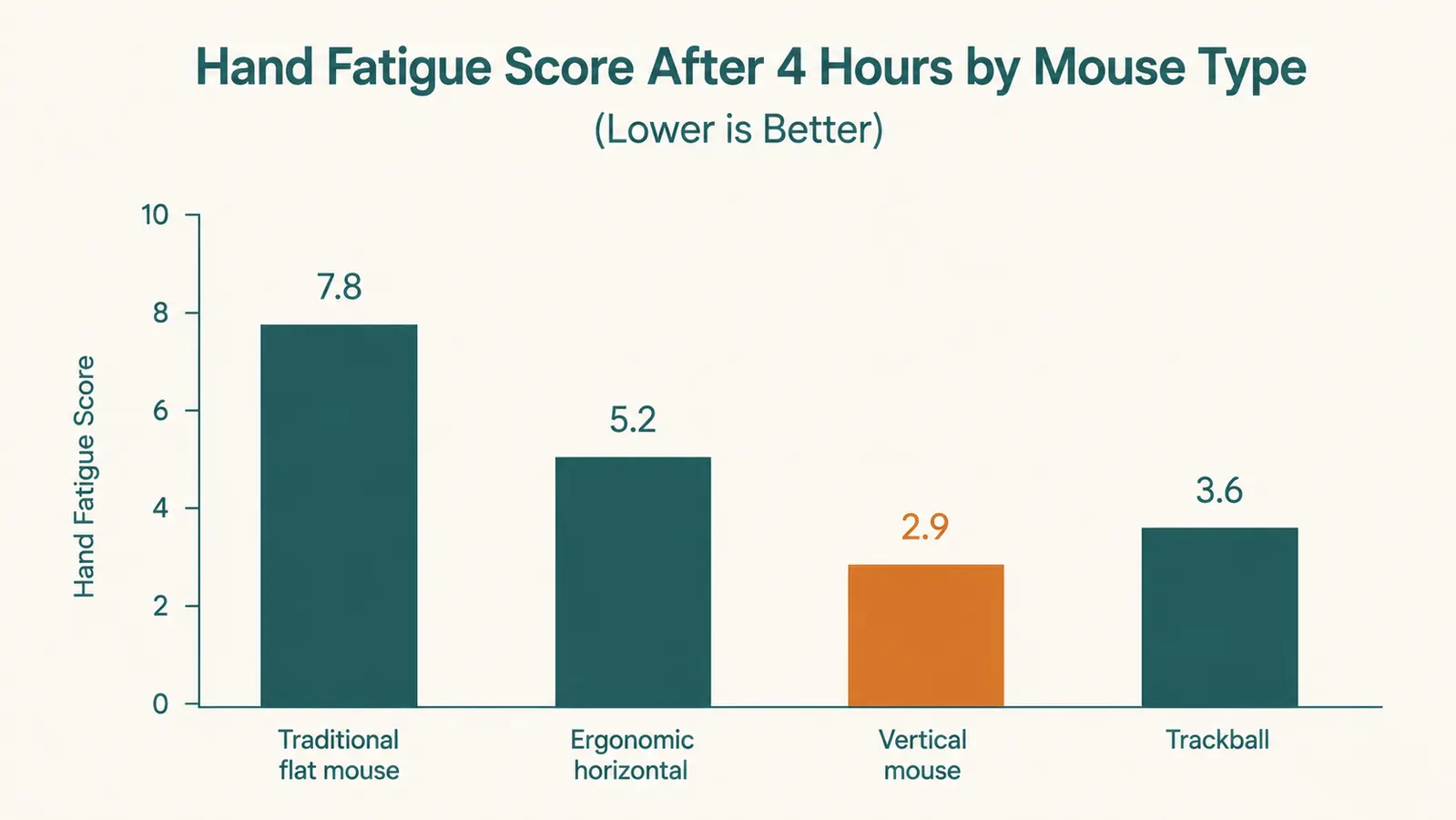
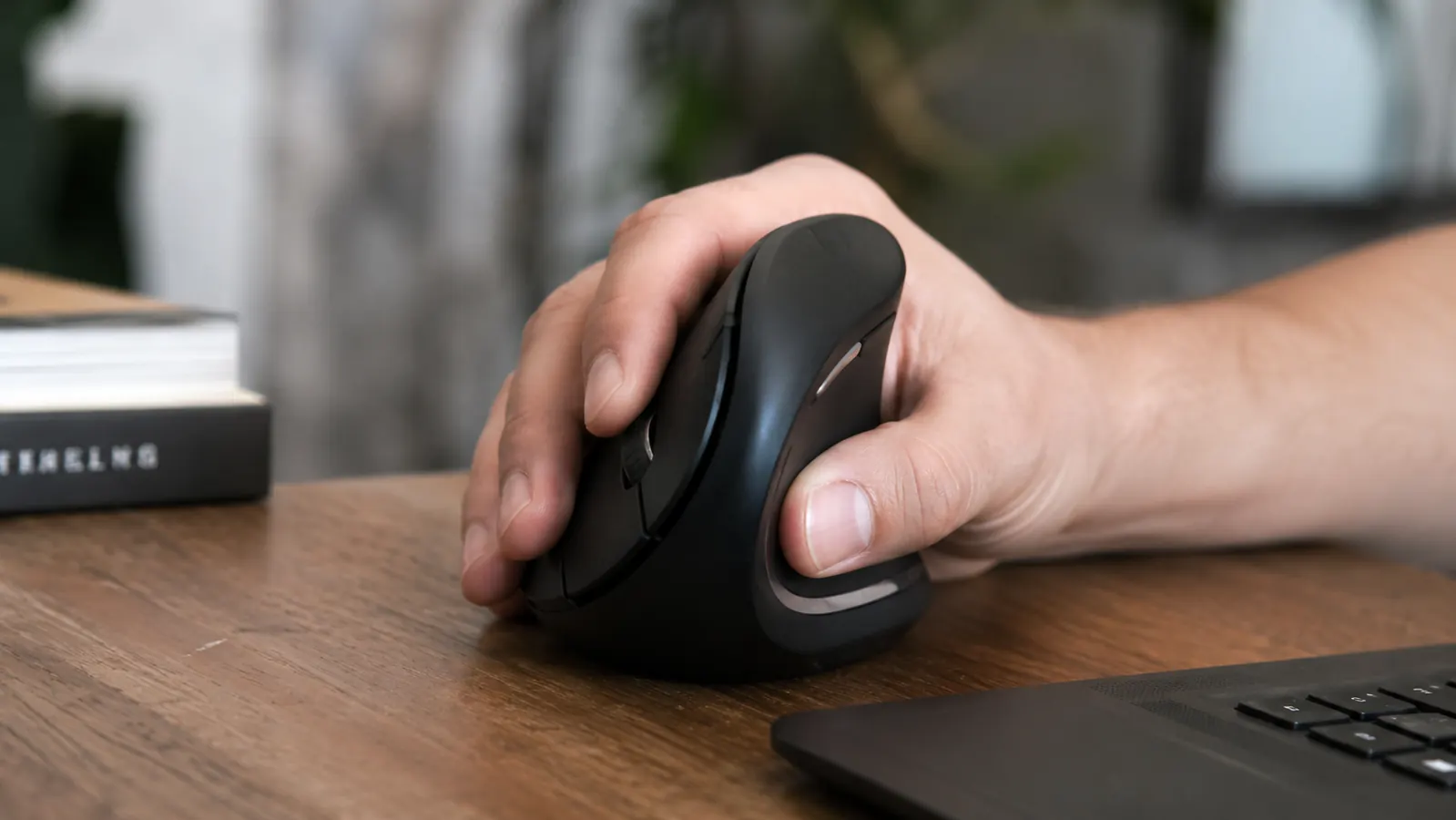
This is the change that made the most structural difference for me, and it is the one I recommend to anyone who has already addressed their desk height and mouse placement without getting full relief. A standard flat mouse requires your forearm to rotate fully palm-down, a position called pronation. Holding that position for eight hours loads the two forearm muscles responsible for rotation, the pronator teres and the pronator quadratus, into a constant low-level contraction. Over months, that leads to the chronic ache that starts in the forearm and eventually refers into the hand and fingers.
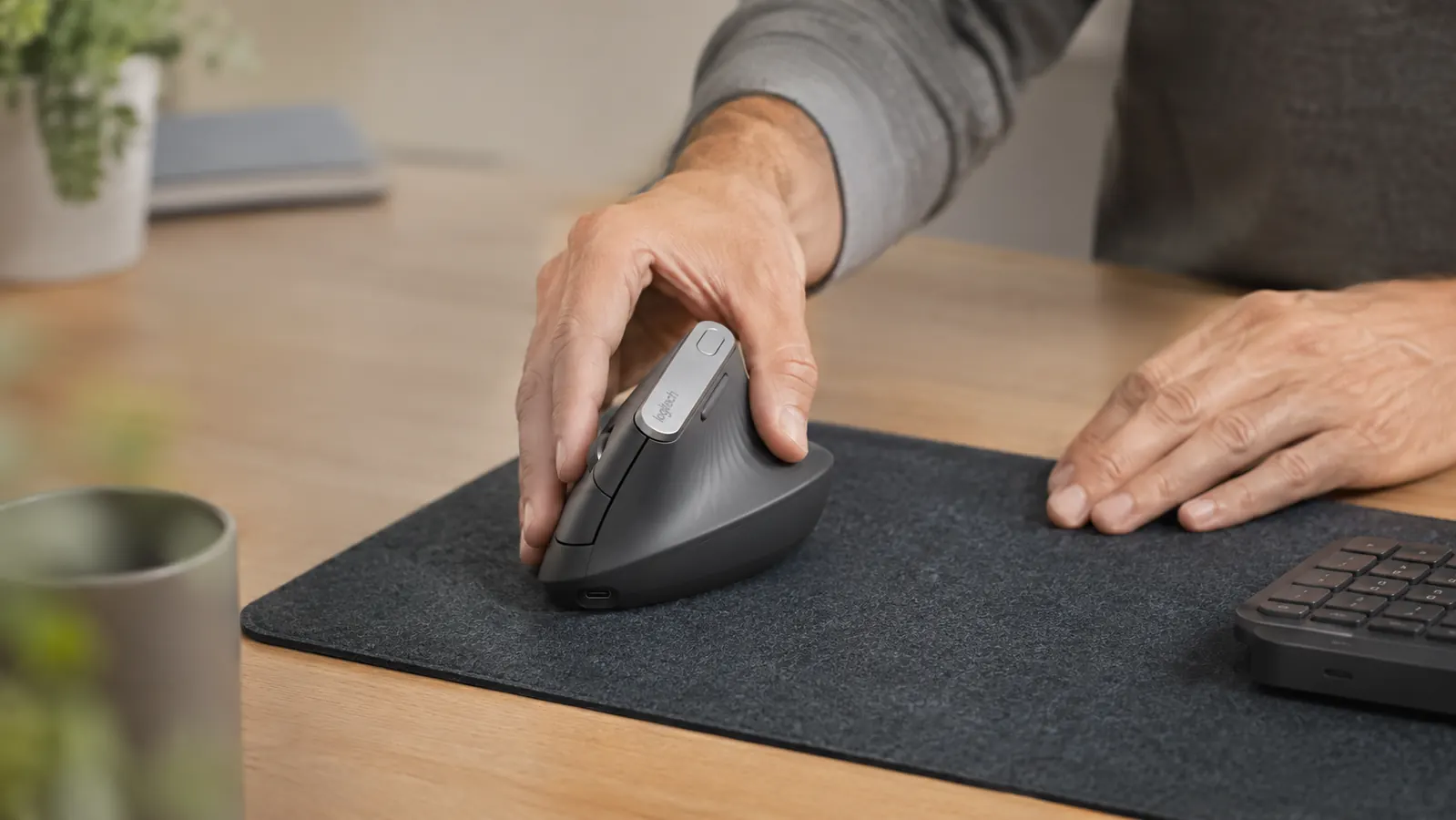
A vertical mouse holds your hand at roughly a 57-degree angle, close to the neutral handshake position your arm falls into when it hangs at your side. That angle removes most of the sustained pronation load. The Logitech MX Vertical is the model I settled on after trying three others. It has a high-precision optical sensor that tracks well on fabric surfaces without micro-jumping, a thumb rest that is wide enough to actually support the hand rather than just looking like one, and Bluetooth pairing that works across up to three devices without a dongle for two of them. The scroll wheel has a solid, tactile click that made me realize how imprecise the scroll wheel on my previous mouse had been.
The adjustment period is real. My clicking accuracy dropped noticeably for the first four or five days, and I found myself reaching for my old mouse during deadline crunch. By day ten the new grip felt natural, and by day fourteen I tried my old flat mouse again out of curiosity and found the pronated position immediately uncomfortable. The transition takes about two weeks for most people. Plan for it.
By day fourteen I tried my old flat mouse again and found the pronated position immediately uncomfortable. Two weeks is all it takes, and the relief on the other side is worth every awkward click of the transition.
One practical note: the MX Vertical is sized for medium to large hands. If your hand measures less than 170 mm from the base of the palm to the tip of the middle finger, the mouse may feel slightly oversized at first, though most users with smaller hands still adapt comfortably. If you want a deeper look at eight months of daily use before committing, I covered everything in the Logitech MX Vertical long-term review, including the sensor behavior on different pad surfaces.
Step 5: Choose the Right Desk Pad Surface
The surface your mouse tracks on affects how much tension your hand carries to keep control of the cursor. A surface that is too slick requires tighter grip to prevent over-shooting. A surface that is too textured creates micro-vibration in the tendons with every movement. A mid-density fabric desk pad in the 3 mm to 5 mm thickness range provides enough cushion that the forearm does not rest on a hard edge while also giving the mouse sensor a consistent tracking surface.
Hard plastic or glass pads can be precise for gaming use cases where speed matters, but for all-day productivity work they require a tighter grip for control and offer no wrist cushion. I switched from a hard pad to a large fabric pad that covers most of my desk surface, and the combination of wrist contact cushioning and more forgiving tracking feedback reduced the fine-muscle tension in my fingers consistently. Size matters here too. A pad large enough that you never run off the edge means you are never re-gripping and repositioning the mouse mid-motion.
What Else Helps
The five steps above address the structural causes of mouse fatigue. There are a few supporting habits that make the gains stick and prevent backsliding. First, take a two-minute break every 45 to 60 minutes and let your hand rest in a completely open, unclenched position. This is not a stretch routine, just allowing the flexor tendons to decompress. Most people who add this find their afternoon ache drops by half in the first week.
Second, look at your keyboard situation if you have not already. A lot of forearm tension that gets attributed to the mouse actually originates at the keyboard. A straight-bar keyboard keeps both wrists in slight ulnar deviation all day, which loads some of the same tendons. If switching to a vertical mouse gives partial but not complete relief, addressing the keyboard is the logical next step. I went through that process separately and wrote it up in the Logitech K860 ergonomic keyboard review for anyone who wants to see how a split keyboard changes the wrist angle.
Third, pay attention to when during the day the fatigue builds. If it peaks in the early afternoon regardless of what you have been doing, that is usually a sustained static load issue, meaning your hand is gripping and hovering even during video calls and reading. A mouse that requires less grip force to stay in position, either because it is better sized for your hand or because the surface is more forgiving, reduces that background load. If the fatigue is worst in the morning right after starting work, that often points to inflammation from the prior day that has not fully resolved overnight, which suggests the structural fix is not yet complete.
The Logitech MX Vertical removes the forearm rotation that flat mice force on you all day.
After eight months of daily use it remains the single piece of gear I would most recommend to any remote worker dealing with persistent mouse-hand fatigue. Check the current price on Amazon before you invest more time in workarounds.
Amazon Check Today's Price on Amazon →